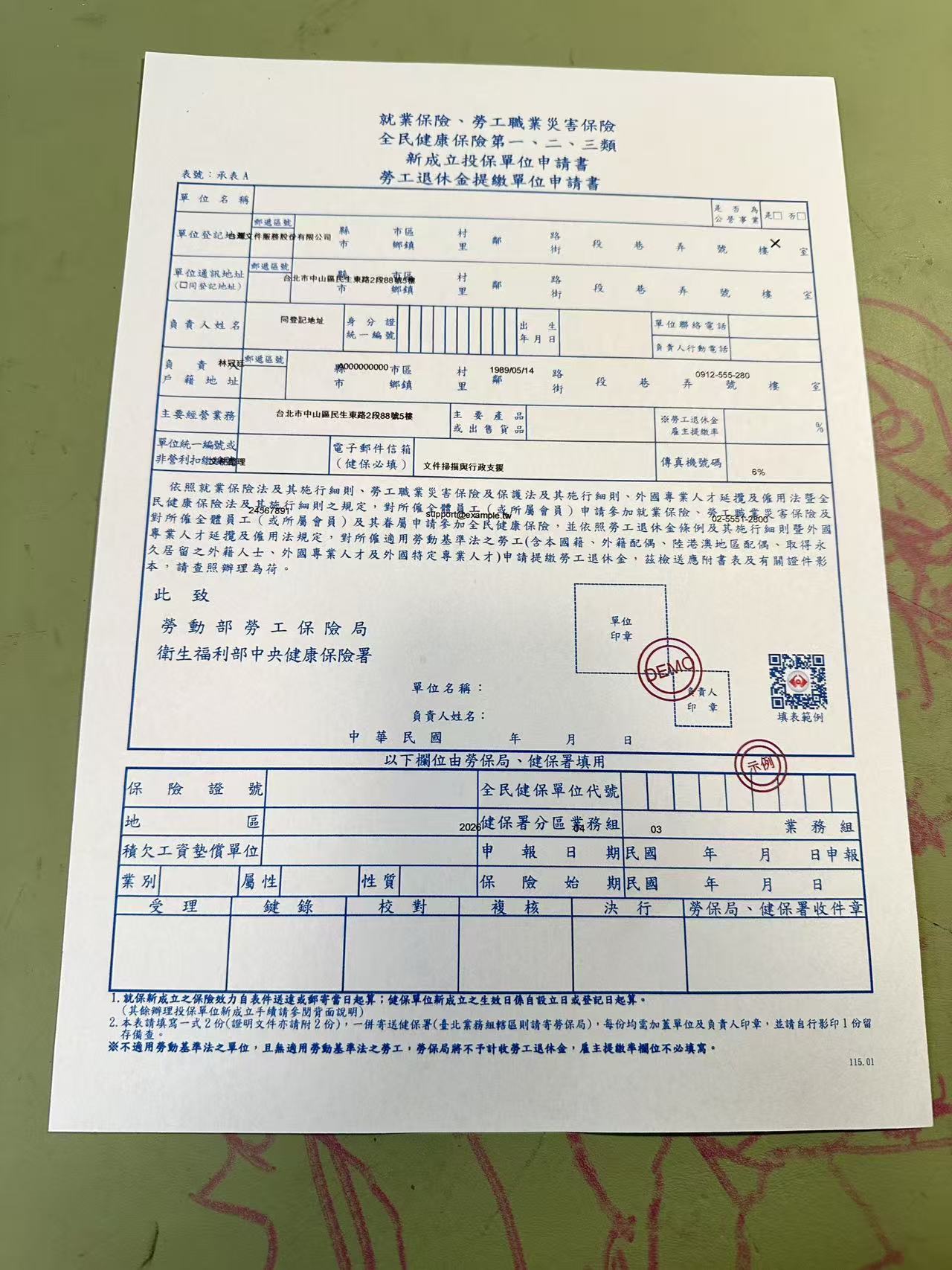
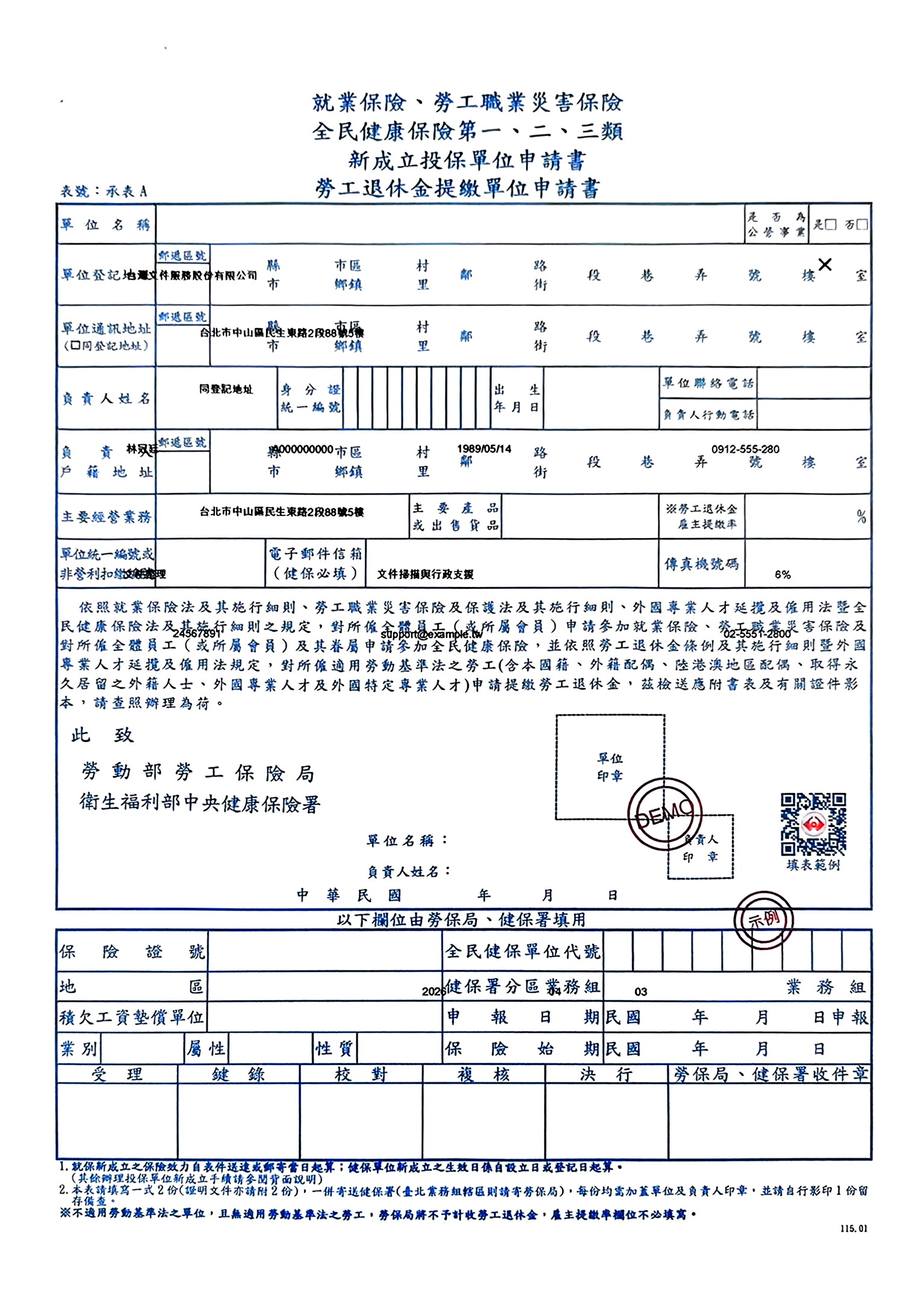
Why document photos come out skewed
A flatbed scanner presses the page flat against a fixed glass plane, with the sensor perfectly parallel to it — that geometry guarantees a true rectangle every time. A handheld phone photo rarely has that guarantee.
- Holding the phone at a slight tilt while shooting down at the page
- Photographing a document lying at an angle on a desk, lap, or car seat
- Documents shot on uneven or curved surfaces — books, binders, clipboards
- Wide-angle phone lenses that exaggerate distortion near the edges of the frame
The result: the page looks like a trapezoid instead of a rectangle, with text that appears to converge toward one edge — exactly the kind of artifact that gets a submission flagged as "not a proper scan."
How the straightening works
PhotoToScan's model approaches straightening as a geometry problem, not a simple rotate or crop.
- Corner detection — locating the four corners of the document within the photo, even against a busy background
- Perspective transform — calculating the exact warp needed to map those four corners onto a true rectangle
- Re-sampling — rebuilding the image content along that transform so straight lines and text stay straight edge-to-edge
- Rotation fine-tuning — correcting small residual rotation in the same pass, so the page also sits level
This is not the same as a "rotate 90°" tool. Rotation only spins the whole image; it can't fix a page that's trapezoidal because it was photographed off-axis. Perspective correction reshapes the geometry itself.
How to use it
- Step 1 — Upload your document photo (JPG, PNG, HEIC, WebP)
- Step 2 — PhotoToScan automatically detects the page and straightens it
- Step 3 — Preview the result, then download as JPG or PDF
No account required to preview. Works in any browser, on any device.
When to use this
- Forms and ID documents photographed at a slight angle in a hurry
- Pages photographed inside a book or binder, where the surface itself sits on a tilt
- Quick snapshots taken on the go — a desk, a car, a counter
- Visa, residence permit, or ID submissions that require a "flat, front-facing" copy
- Photos someone else took for you at an awkward angle
Frequently asked questions
- Does it work if the photo was taken at a steep angle?
- Yes, within reason — as long as all four corners of the page are visible in the frame, the AI can compute the correction. Extremely oblique angles reduce accuracy near the corners.
- Will straightening distort the text?
- No. Perspective correction re-maps pixel positions using the detected page geometry, so text lines that were converging become parallel and evenly spaced again — matching what a flatbed scan would show.
- Is this different from just rotating the image?
- Yes. Rotation only fixes a photo that's sideways or upside down. Straightening fixes a document that's trapezoidal because it was photographed off-axis — a problem rotation alone can't solve.
- What if the page corners aren't fully visible in the photo?
- The AI needs to see all four corners to compute an accurate correction. If a corner is cropped out of frame, retake the photo with the full page visible and a small margin around it.